The short version
To make your Twitter (X) account private, open Settings and privacy, then Privacy and safety, then Audience and tagging, and turn on Protect your posts. On mobile, start from your profile photo; on the web, start from More. Existing followers keep access, so review them after you switch.
This guide covers the mobile and web routes, what protection does and does not hide, your existing followers, and switching back to public. Every setting name and behaviour below was checked against X Help on September 26, 2026.
- 1MenuProfile photo on mobile, More on web
- 2Settings and privacySame name on all devices
- 3Privacy and safetyThen Audience and tagging
- 4Protect your postsSlider on iOS, checkbox elsewhere
Make your Twitter account private on iPhone or Android
Check the avatar and handle before you start. If you manage a personal profile and a company account, the same menu can change the wrong one. X calls the setting Protect your posts; older guides call them tweets.
- 1
Open the menu
Tap your profile photo in the top menu. On Android you may see a navigation menu icon instead; tap whichever you have. - 2
Choose Settings and privacy
Then tap Privacy and safety. - 3
Open Audience and tagging
Next to Protect your posts, drag the slider on iOS or check the box on Android. - 4
Confirm it stuck
Leave the screen, reopen Audience and tagging, and check it is still on.
Make your account private on the web
The web route is useful when you want a larger screen or need to see which account is signed in. You are changing the account itself, not creating a private version for that browser.
- 1
Click More
In the left navigation on X.com. - 2
Go to Settings and privacy
Then Privacy and safety. - 3
Open Audience and tagging
Check the box next to Protect your posts and confirm if prompted. - 4
Confirm it stuck
Reopen Audience and tagging and check the box is still ticked.
What changes when you protect your posts
Protection controls who can read your posts on X. It does not control copies that already left X. This is the split most guides skip, and it decides whether protection solves your actual problem.
What changes
- New followers have to request, and you approve or deny each one.
- Your posts and their permanent links are visible only to followers.
- Followers cannot repost or quote your posts.
- Your posts stop appearing in Google and other search engines.
- X search shows your posts only to you and your followers.
- Replies you send to people who do not follow you are invisible to them.
What does not change
- Existing followers keep access unless you block them.
- Anyone who already had a post on their Home timeline may still see it.
- Followers can still screenshot and share what you post.
- Connected third-party apps may still read your protected posts.
- Anyone with a t.co or media link can still open it.
- Copies on other websites stay. X cannot remove them.
Protection also covers posts, not your profile. Your bio, name and profile photo stay visible, so review them separately if they say more than you want a stranger to read.
What happens to your old tweets, screenshots and links
X says posts you made while public stop being public on X and drop out of public X search. One exception: someone who already had a post on their Home timeline may still see it, though they cannot interact with it or open its details.
Outside X, nothing is erased. Screenshots, copies on other sites and old search snippets stay where they are, and X cannot remove content from other websites. For a stale Google result, use Google’s own removal tools rather than toggling protection again.
Links are the other gap. A link in a protected post becomes a t.co link, and anyone who has it can reach the destination. Media links are not protected either. If a post linked to an open document, change the document’s own sharing settings; your X audience cannot close a public file elsewhere.
Review existing followers and new requests
Accounts that followed you before you switched keep access. They are not asked to request again, so treat protection as a gate for new people, not a fresh guest list.
New requests live under Follower requests. On mobile, tap your profile icon; on the web, it sits at the top of the More menu. Tap the checkmark or Accept to approve, and the X or Decline to deny. If someone who already follows you should lose access, X names blocking as the way to remove it.
Pick an approval rule you can explain to yourself: people you know, a defined peer group, or colleagues on a project. A professional-looking avatar is not evidence that someone belongs in that circle.
Check that the change did what you intended
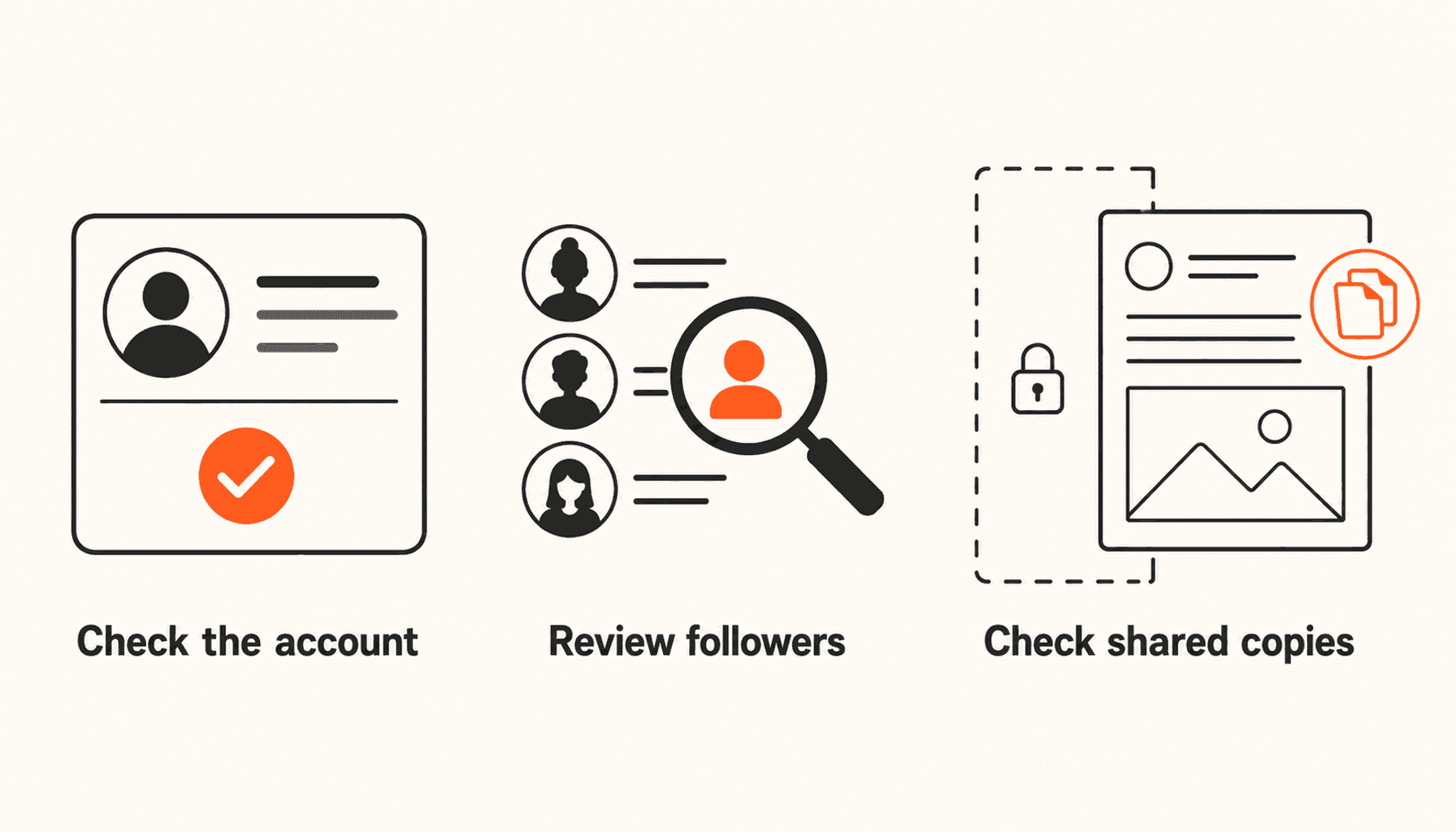
Five-minute verification
- The handle you changed is the account you meant to change.
- Audience and tagging still shows Protect your posts turned on.
- An account that does not follow you cannot read your posts.
- Existing followers and pending requests have been reviewed.
- Bio, connected apps and any linked files are checked separately.
Test from an account that does not follow you. Your own view, or a follower’s, always shows the posts, which makes protection look broken when it is working.
Troubleshoot missing settings or posts that still look public
If you cannot find the setting, compare your app with the web route above and confirm you are signed in to the right account. Note the exact menu label if you need to ask X support.
If someone can still read a post, first ask whether they already follow you. Then separate the original post from a screenshot or a cached search listing, because each has a different fix.
If your posts were never public but show up in search results, X advises changing your password, revoking untrusted connected apps, and filing a report with when it started, where you saw the posts and which apps you use. Revoke apps through X’s connected apps controls, and never give a new service your login just to test privacy.
How to make your Twitter account public again
Go back to Audience and tagging and turn Protect your posts off. Two warnings from X first. Every previously protected post becomes public. And pending follower requests are not accepted automatically, so approve the ones you want before you switch, or those people will have to follow again.
If the private period was temporary, keep a note of why you turned protection on. A casual update written for a small circle may need more context once strangers can read it.
Privacy or public growth: pick per account
A private account is a reasonable choice when you want a smaller audience and approval over new followers. You do not need to justify that with a growth metric. A public profile serves a different goal: letting people inspect your work before they decide to follow.
Some founders keep personal updates protected and run a separate public account for the product. If you are weighing that, see founder vs company X account. ClimbX is our tool for the public side: it researches what is working in your niche and drafts in your voice for you to review. It cannot reveal protected posts, and it is not a reason to give up privacy you need.
Common questions
Does making my Twitter account private protect old tweets too?
Yes. X says older public posts stop being public on X and drop out of public X search. Someone who already had a post on their Home timeline may still see it, but cannot interact with it. Copies, screenshots and search snippets outside X may remain.
Do existing followers need approval again?
No. Accounts that followed you before you protected your posts keep access unless you block them. Review that audience separately if you want to share with fewer people.
Will my protected posts show up on Google?
X says protected posts do not appear in third-party search engines. An old result from when the account was public can linger for a while; X cannot remove content from other websites, so use the search engine’s own removal tools for that.
Can followers screenshot protected posts?
Yes. Protection does not stop a follower from capturing or sharing a copy, and links to media you share are viewable by anyone who has the link.
Why can I not see follower requests?
There may be no pending requests, since the notice disappears at zero. A request may have been withdrawn, or the account may still be public. Check the setting and the request list.
Will old protected posts become public if I unlock my account?
Yes. Unprotecting makes every previously protected post public, and pending follower requests are not accepted automatically. Review both before turning protection off.
Build a public writing routine on your terms.
If public growth is your goal, use ClimbX to research ideas, draft in your voice, and schedule posts you have checked. Choose what you share and keep the final say.
Read next
- Can You See Likes on X? What Is Private and What You Can Check - Understand private likes on X, find your own liked posts, and evaluate Twitter like-viewer claims without confusing counts with account-level history.
- How to Change Sensitive Content Settings on X - Find X’s viewing and search filters, distinguish them from labels on your own posts, and understand why some media remains unavailable.
- Founder or Company X Account: Where Should You Build Your Audience? - Choose where to build your X audience with founder and company account examples, clear publishing roles, and a practical review plan.
Sources
- How to protect and unprotect your posts - Official X Help, checked September 26, 2026.
- About public and protected posts - Official X Help, checked September 26, 2026.
- How to approve or deny follower requests - Official X Help, checked September 26, 2026.
- Connect or revoke access to third-party apps - Official X Help on connected apps.