The short version
Open the X post composer and look for Drafts on mobile or Unsent posts on the web. Check the account and device where you wrote the post before troubleshooting. Logging out or reinstalling the mobile app can delete the drafts you are trying to find.
First ask where you last saved the text: X on your phone, X in a browser, or a separate writing tool. Check those places before you change any account settings. Finding a draft and recovering a deleted one are different jobs, so this guide covers them separately.
Choose the next step
| Your task | Start here |
|---|---|
| iPhone or iPad | Open the post composer, then Drafts. |
| Android | Open the post composer, then Drafts; also check the profile overflow menu. |
| Desktop browser | Open the composer, then Unsent posts. |
| Separate writing tool | Check that tool’s draft library and calendar. |
Find the draft in the client where you wrote it
Start with the account and device you wrote on. If you switch between a personal and a product account, you may be looking in the wrong one. Check the avatar before you decide the text is gone.
On iOS and Android, X says the Drafts option only shows up after you save a draft. If you never chose to save, a missing Drafts label does not mean the app lost anything.
- On iPhone or iPad, open the compose control in X, then choose Drafts if it appears. Select the saved post you want to continue.
- On Android, open the composer and choose Drafts. X also documents a Drafts entry in the profile overflow menu.
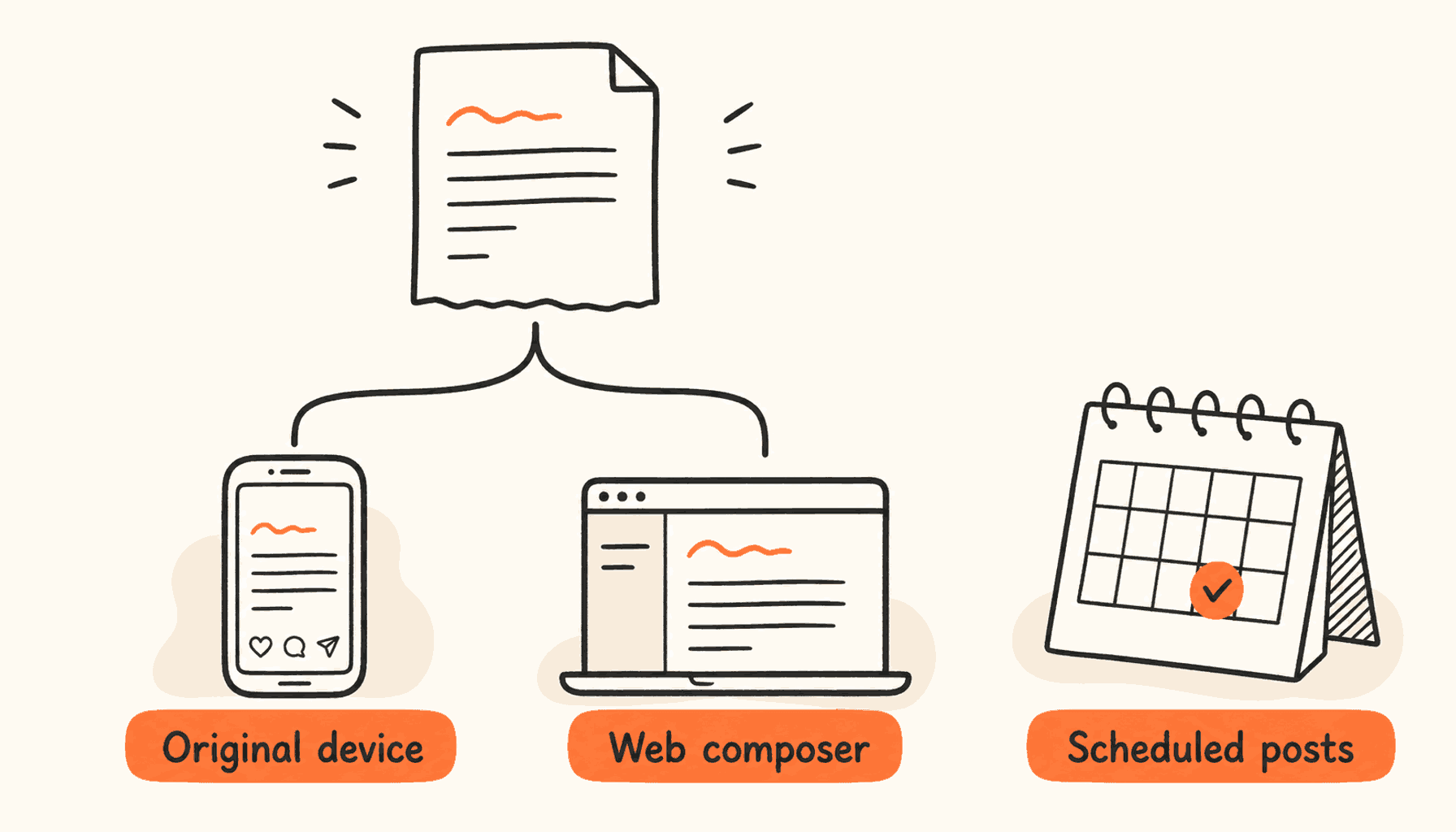
- On the web, open the post composer and choose Unsent posts. Look through drafts and scheduled items before you write a new version.
- Check the text and attachments in the draft you picked. Copy anything important somewhere else before you start troubleshooting.
Open, edit, and deliberately save
Select the draft to keep writing. On the web, close the composer and choose Save to keep the unfinished post. Make sure you saved before you leave, especially if you just edited the last line.
For an important announcement, keep a separate copy of the text, the media files, and the link. A paragraph in Notes is only half a backup if the screenshot with the customer result is missing.
Why a draft may look different on another device
Drafts do not work the same way in every X app. Sync reports and older help pages can describe different versions. X’s web troubleshooting page says logging out keeps a draft in Unsent posts. Its mobile help warns that logging out or uninstalling deletes drafts. Start with the instructions for the app you actually use.
If the draft shows up on another device, compare the last sentence, attachments, and thread order before you edit either copy. A matching first line does not mean the latest version arrived. Keep one working copy until you know which one is current.
A quick check: save a test sentence, reopen it, and look for that exact text in the other app you use. That shows what happens in your setup today. It does not prove that every future media attachment or thread will behave the same way.
Check scheduled posts before recreating the announcement
A draft is unfinished work. A scheduled post has a delivery time. If you already moved the post into a queue, it will not be in your drafts. It can look lost when it is fine.
Check X’s own scheduled queue or the outside scheduler you used. If you rewrite the announcement right away, you can end up with two versions scheduled for the same launch. Open the existing post first and check its account, time, timezone, and attachment.
- Working copy: the idea and evidence still need editing.
- Approved copy: the claims, links, and images have been checked.
- Scheduled copy: the account and delivery time are confirmed.
- Published copy: someone has checked the live result.
If the draft is still missing
Check your notes, document history, and any other writing app you used. Go back to the browser profile and the device you started on. These checks save whatever text still exists.
X says mobile drafts deleted by logging out or uninstalling cannot be restored. Copy any drafts you can still open before you do either. Do not count on sync between devices as a backup.
A service that promises to recover every deleted draft has not shown it has a copy of your text. Never hand over your password or verification code to test it.
| What you see | Next check |
|---|---|
| No Drafts option | Confirm account and whether a draft was deliberately saved. |
| An older version | Compare the original client and your separate working document. |
| Text exists, attachment missing | Find the original file and preview the full post again. |
| Draft disappeared after scheduling | Check the queue for an existing scheduled item. |
| Draft deleted by mobile logout/uninstall | Look for an independent copy; the help page offers no restore process. |
Make the next draft easier to finish
Give each important idea a short working title outside the composer, such as “onboarding change: fewer setup steps.” Keep the source screenshot and the point you want readers to understand next to it.
When you come back, ask what is missing: a concrete example, the explanation, or the final edit. That tells you what to do next. Fifty fragments with no next step just give you another place to search.
For a small launch, keep the product change, the proof, and the link together. Check the claim before you polish the hook. Then confirm the account and move the approved version into the queue. That way an unfinished idea ends up published, not just stored.
Frequently asked questions
Why is the Drafts button missing?
X says the mobile option appears when a draft is saved. Check the account and whether you chose Save draft.
Can I restore a draft after uninstalling X?
X’s mobile documentation says drafts deleted through logout or uninstall cannot be restored. Look for a separate copy you made earlier.
Can a thread be a draft?
Yes. X documents draft threads. Review each post and the order before publishing the sequence.
Do Twitter drafts sync between web and mobile?
It depends on the apps and versions you use. Check the latest saved text and attachments on both devices. Keep your own copy of important work. Sync is not a backup.
Finish the post you saved
If finding the draft is easy but finishing it is hard, try ClimbX. It finds post ideas and drafts them in your voice. You edit and approve every post before it goes out.
Read next
- A Weekly X Content Calendar for SaaS Founders - Plan a useful week of X posts from real product work and customer questions, with a worked calendar, quiet-week alternatives, and review checks.
- How to Schedule Posts and Threads on X - Schedule X posts and threads without losing your voice. Compare native scheduling with third-party queues and build a sustainable, human-reviewed cadence.
Sources
- X for iOS - Finding drafts and the effect of logout or uninstall.
- X for Android - Android draft locations and deletion behavior.
- How to post - Web drafts and scheduling.
- Creating threads - Saving and publishing thread drafts.
- X web troubleshooting - Web-specific Unsent posts behavior; distinguish it from mobile help.